
Comparison
ClickLatch vs. macOS Drag Lock
If you drag with a trackpad and you are comfortable with tap-to-click, macOS has a Drag Lock built in and you probably do not need anything else. If you use a mouse, a trackball or a joystick mouse, or if tap-to-click is too sensitive for you, Drag Lock will not help.
That gap is what ClickLatch fills.
A comparison table
| macOS Drag Lock | ClickLatch | |
|---|---|---|
| Works with a mouse | No | Yes |
| Works with a trackpad | Yes | Yes |
| Adjustable hold time | No | Yes, 200 to 2200 ms |
| Visual feedback | None | A ring around the pointer, and a sound |
| Needs tap-to-click | Yes | No |
| Cost | Free, part of macOS | Free and open source |
What ClickLatch does differently
- It works with a mouse and a trackpad alike, because it acts on the events rather than on the hardware.
- The hold time is yours, anywhere from 200 to 2200 ms.
- A ring fills around the pointer and a sound plays, so you know the moment it has caught.
- It never leaves a button stuck: quit it, switch it off or take its permission away, and a final mouse-up always goes out.
It is free and open source under the GPL-3.
What macOS Drag Lock is
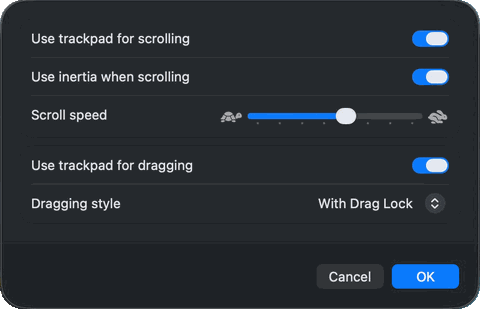
macOS can hold the button down for you on the trackpad. You will find it under System Settings, Accessibility, Pointer Control, Trackpad Options, where you switch on Use trackpad for dragging and set Dragging style to With Drag Lock.
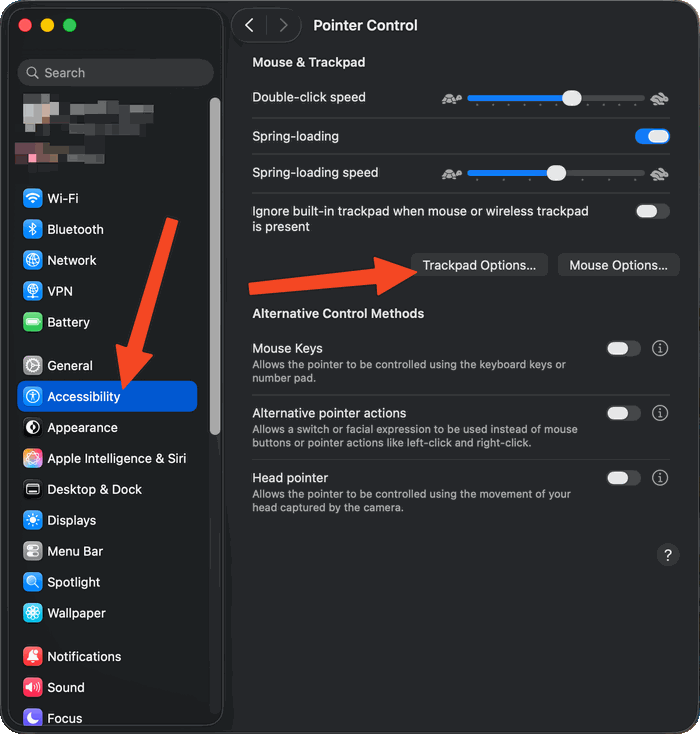
The exact wording and the place this setting lives have moved between macOS versions, and it sat under different names on older systems, so if the path above does not match your Mac, look for the trackpad options inside the accessibility settings.
The gesture is a double tap. Tap once, then tap again and keep your finger down on that second tap. Now move, and whatever you touched comes with you, with nothing held down. Tap once more to let go.
What macOS Drag Lock does not cover
- Trackpad only. It does nothing for a mouse, a trackball or a joystick mouse, which is what many people who need this most are using.
- It requires the tap-to-click style of dragging. For some people that is too light and triggers by accident, which is a common complaint.
- The hold duration is not adjustable.
- There is no visual or audible confirmation that the lock has engaged.
The other ways people solve this
Drag Lock is not the only option, and ClickLatch is not the only alternative to it. These are the rest, and any one of them may be the right answer for you.
Mouse Keys
With Mouse Keys turned on, the keyboard can hold the mouse button down and release it again, which gives you a drag lock without installing anything. The drawback is that Mouse Keys takes over part of the keyboard while it is on, so you cannot type normally until you switch it off again. Apple describes the feature and the keys it uses in Use your keyboard like a mouse with Mac.
BetterTouchTool
A large customisation app for the trackpad, mouse and keyboard with several hundred actions, and it can be configured to do this. It is paid software after a trial, and it is a lot of app to install for one behaviour. folivora.ai
USB Overdrive
A mouse and input device driver for macOS that has been maintained since 1999, with a Click Lock action you can assign to a button. It is built around configuring a whole device rather than this one behaviour, and it leaves Apple’s own peripherals alone. usboverdrive.com
Paid single-purpose apps in the Mac App Store
There are small paid apps that do nothing but this, and they work. If one of them suits you better than anything else here, it is a fair way to solve the problem.
Feel it before you install it.
The demo on the front page is the real behaviour, in the browser. Hold the button, let go, and see whether it is what you have been looking for.
Already convinced? Download ClickLatch for macOS.